
Send alerts to a group or channel
Forward your SpyBot alerts to one Telegram group or channel: the rights the bot needs, the test message, /channel off and limits.
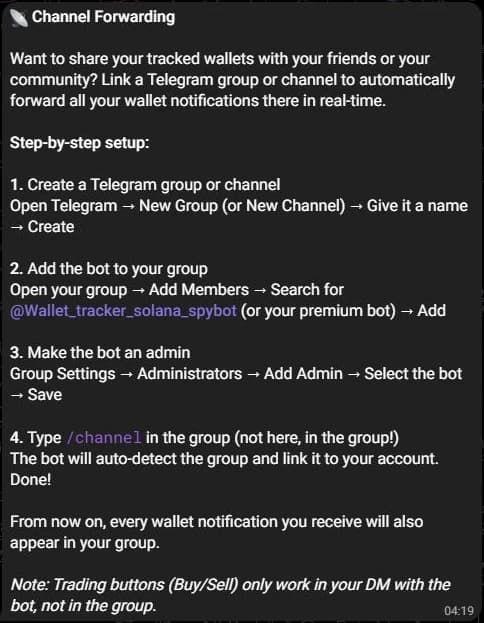
/channel forwards every alert you receive into one Telegram group or channel you manage. Use it to follow wallets with a team, or to show your tracked wallets to a community.
The group reads what you read
Every alert you receive is copied there, so every member sees which wallets you track and what they trade. Link a group you control.
What the group receives
The copy is made by the bot after it delivers the alert to you.
- It keeps the text, the token image and the links written inside the text.
- No buttons. Buy and sell buttons, explorer buttons and trading-bot buttons stay in your private chat, so nobody can trade from the group.
- No second place in your quota. The copy follows the alert: when your hourly or daily limit blocks the alert, the group receives nothing.
- Wallet alerts, Multi-Wallet Tracker, Accumulation alerts and Holding Tracker alerts are copied. Price alerts and the answers of the research tools stay in your private chat.
Link a group
Add the bot as an administrator
Add the bot you use to the group or channel, then open Administrators, Add Admin and pick it. It needs the right to post messages. Without that right the link is refused.
Start the bot in your private chat
The link belongs to your account, so the bot must know you already. Send /start to it once in a private chat. Otherwise the group answers ❌ You need to start the bot in DM first.
Send /channel inside the group
Type /channel in the group or the channel itself. It is the only command the bot reads outside your private chat, and it ignores every other message there.
SpyBot posts a test message to prove it can write:
✅ SpyBot linked!

Notifications from YOUR_USERNAME will appear here.
That message deletes itself after 10 seconds. The link is saved before it disappears, so the group starts receiving at once.
Check, move or remove the link
Send /channel in your private chat. The bot answers 📡 Linked Channel with Status: Active, the channel title and its type.
| Command | Where you send it | Result |
|---|---|---|
/channel | Your private chat | Shows the linked group, or the setup steps when nothing is linked. |
/channel | Another group | Moves the link to that group and replaces the previous one. |
/channel off | The group or your private chat | Unlinks the group and answers that it is unlinked. Your notifications stop being forwarded. |
/channel @name or /channel -100… | Your private chat | Links that group, if the bot can post in it. |
Limits
- One link per account. Linking a second group moves the link there.
- The group receives every alert from every wallet you track.
- The copy comes from the bot that delivers your alerts. After you move to another bot with
/bots, add that bot to the group as an administrator, or the first copy fails and SpyBot unlinks the group. - When the bot is removed from the group, or loses the right to post, SpyBot drops the link at the next alert.
Related
- Commands and main menu for the 11 commands and the main menu buttons.
- Dedicated bots when you move your account to a premium bot.
- Quotas and delivery limits for the hourly and daily counts.
Last verified on October 24, 2026