
Authorize this device
Authorize the browser you trade from in the first 10 minutes after signing in, and understand why the Web Terminal asks for it.
The Web Terminal asks every browser to be authorized before it can trade. The browser holds its own key, kept inside it, and signs each order with that key. A stolen session cannot trade from another machine.
Telegram and Discord never ask: trading is always open for your linked account there.
Why the Web Terminal asks
- The signing key is created in your browser and never leaves it. SpyBot only stores its public half.
- Every order, and every change to your trading settings, is signed before it is sent.
- A browser that has no authorized key cannot place an order, even with your session.
The key is separate from your SpyBot wallet key: it authorizes requests and cannot move funds by itself.
Authorize a browser
Sign in
Open the Web Terminal and sign in with Telegram or Discord. The 10 minutes start now.
Open Trading
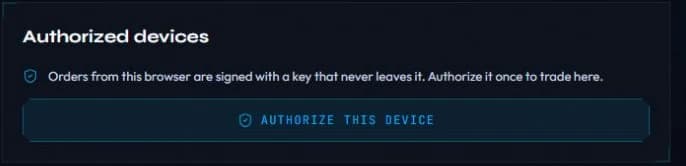
On the Trading page, the Authorized devices card shows a short notice: orders from this browser are signed with a key that never leaves it.
Press Authorize this device
The button creates the key and registers it. The browser then appears in Authorized devices with a label such as Chrome · Windows, marked This device.
Once it is done, the BUY and SELL buttons under your alerts trade on one press, and Save works on the settings.
The 10-minute window
A new device is accepted only within 10 minutes of a sign-in. The window protects the account: someone who steals a session later cannot add their own browser.
If you take longer than 10 minutes, the card changes to Sign in again to authorize, with the reason: a device can only be authorized within 10 minutes of signing in.
- Telegram account: press Sign in with Telegram on that card, confirm in the bot, and come back to the page to authorize.
- Discord account: run
/account loginin Discord and open the private link it sends. The link works once and expires after 90 seconds. Then authorize.
Signing in again opens a new window, which is what to do when the first one closed.
Manage your devices
- Up to 5 devices can stay authorized on one account. Registering a sixth removes the oldest.
- Remove drops a device from the list. Removing the one you are using also deletes its key from that browser.
- Signing out of the Web Terminal deletes the key kept in that browser.
- A device added long ago keeps working until you remove it, so remove the ones you no longer use.
When it does not work
| Message | Cause |
|---|---|
| This browser cannot keep a trading key. Use a recent browser outside private mode. | The browser refuses to store the key, often in private mode |
| Sign in again to authorize | The 10-minute window after sign-in closed |
| Check your device's date and time, then try again. | The device clock is more than 2 minutes away from the server |
| This device is no longer authorized | It was removed from another session. Authorize it again |
A browser in private mode may keep the key for the open tab only: trading works until you close it, then the device is asked for again.
Related
Last verified on October 24, 2026
Order statuses and errors
What processing, sent, confirmed, failed, not landed and uncertain mean on each app, when to wait, and why an uncertain order must never be resent.
EVM tokens: quick-buy links
Turn on the GMGN link and the quick-buy buttons of each EVM trading bot, chain by chain, on Telegram, Discord and the Web Terminal.