
Add SpyBot to your server
Install SpyBot on a Discord server you own, check the five permissions it asks for, and read the welcome message it posts.
SpyBot is a server app. You add it to a server you own, and it makes a private channel there where your alerts arrive. Nothing is added to your own Discord account, and no install for personal use is offered.
Before you start
You need a server you own, because SpyBot creates your alerts channel there and checks that you are its owner. No server yet? In Discord, press + at the bottom of your server list, then Create My Own.
Open the install link
Open Add to Discord, choose your server in the list, then press Authorize.
Check the permissions
SpyBot asks for five permissions, and nothing else:
| Permission | What SpyBot does with it |
|---|---|
| View Channels | Sees the private channel you set for your alerts. |
| Send Messages | Posts your alerts there. |
| Embed Links | Shows alerts as rich cards with token details and links. |
| Attach Files | Adds token images to alerts. |
| Manage Channels | Creates your private alerts channel in one click. |
Manage Channels is used for that one channel, #spybot-alerts, created on your command. If you prefer a channel you made yourself, you can leave it out and choose that channel instead.
Read the welcome message
SpyBot posts a welcome in the server:
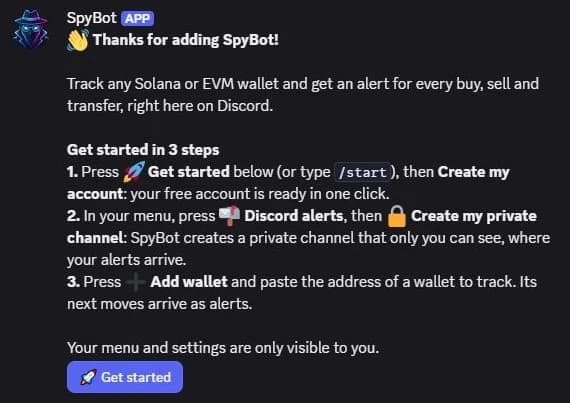
It names three steps: press 🚀 Get started and create your account, open 📬 Discord alerts to create your private channel, then press ➕ Add wallet and paste an address. It ends by saying that your menu and settings are visible to you alone.
The button works for every member: whoever presses it gets their own private menu, and no one else sees it.
What happens around the welcome
- SpyBot posts it in the system channel, where Discord greets new members. When there is no system channel, or SpyBot cannot post there, it sends the welcome by direct message to the person who added it.
- A server receives the welcome once. Adding SpyBot again to grant a permission it lost does not post a second one, and neither does a repeat of the same install within seven days.
- If the message never arrives, the install still worked. Type
/startin a channel of that server to open your menu.
Add SpyBot to more servers
Run the same install link again and choose another server. Each server is independent: its own welcome, its own channels, its own members.
Your alerts reach one channel at a time. Activating them in a second server replaces the destination used in the first one, so pick the server you want for alerts. See Set up your private alerts channel.
Remove SpyBot from a server
Kick the SpyBot member from that server. Its alerts to the channel of that server stop, and your account, wallets and settings stay unchanged. Install it again whenever you want and press Test delivery to check the channel before relying on it.
Next steps
- Discord account or linked Telegram to create your account.
- Set up your private alerts channel.
- Slash commands for the full command list.
Last verified on October 24, 2026
Dedicated bots
Move your SpyBot account to another SpyBot bot with /bots: which bots your plan unlocks, what follows you and what stays behind.
Discord account or linked Telegram
Create a SpyBot account on Discord or link the Telegram account you already use, sign in to the Web Terminal, and check the link status.