
The live feed
Follow your alerts in the Web Terminal: tabs, Feed Settings, chains, search, history, the detail of one alert, and the sound.
Home shows your alerts as they arrive: the type of move, the wallet, the amount, the token with its PnL and market cap, and the links to act on it. It is the screen to keep open while you watch a wallet or a token.
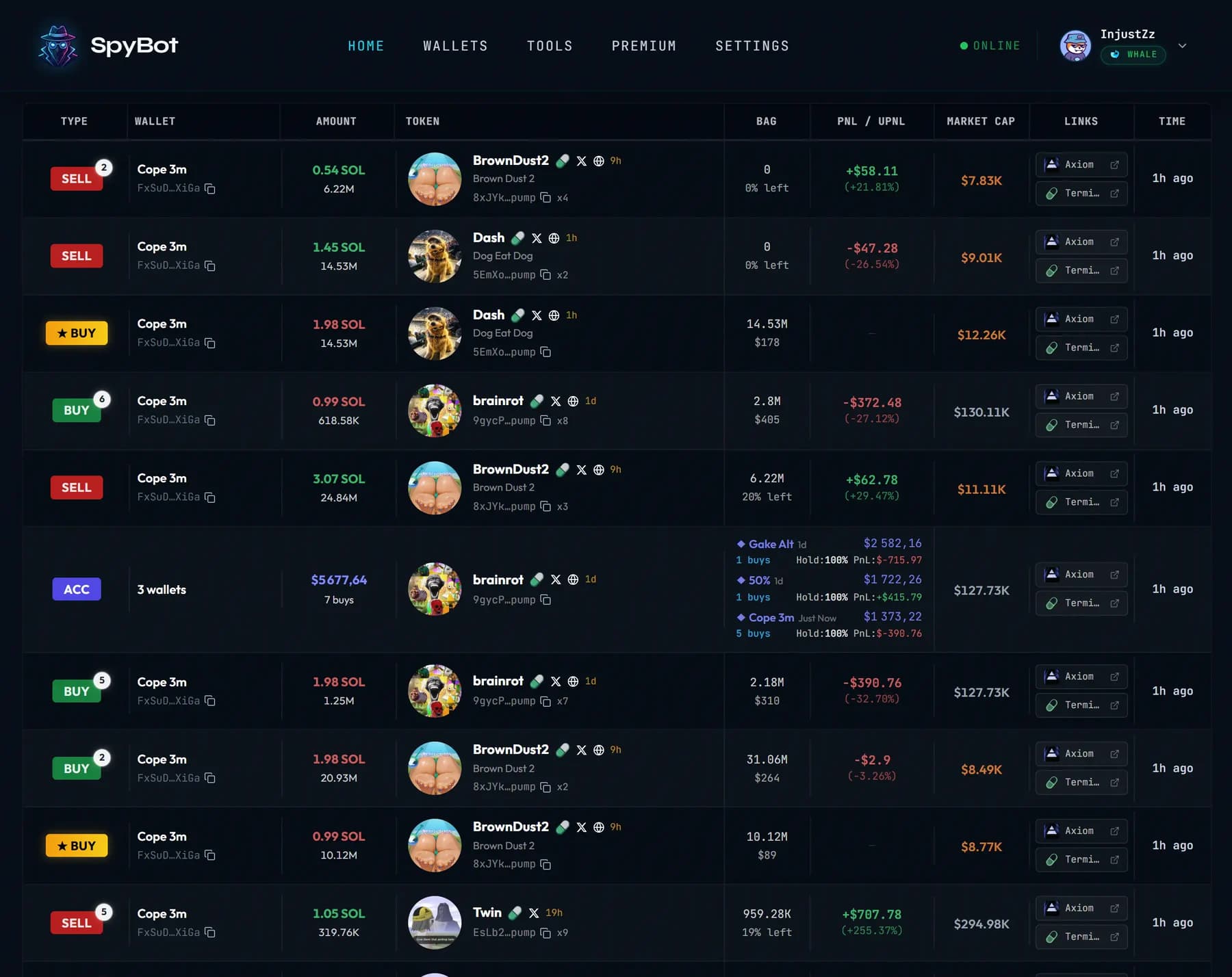
Tabs
Four tabs are yours from the start, and each one shows a family of alerts:
| Tab | What it shows |
|---|---|
| All | Every alert. |
| Trades | Buys, sells and swaps. |
| DeFi | DeFi actions, such as liquidity, lending and bridge moves. |
| Other | Everything that is not a trade or a DeFi action. |
A tracker adds its own tab when you enable it: Multi-Wallet Tracker, Accumulation, Holding and the Pump.fun Migration Tracker. Each one counts the alerts that arrived since your last visit on a small badge.
To rename a tab, press the pencil next to its name, type up to 10 characters and press Enter. Renames are kept in this browser.
Feed Settings
Press the gear at the right of the tab bar to open Feed Settings. Each of the four tabs has its own list of alert types: BUY, SELL, SWAP, TRANSFER, DEFI, NFT, BRIDGE, PRICE ALERT, MWT, ACCUMULATION, HOLDING, MIGRATION and the rest.
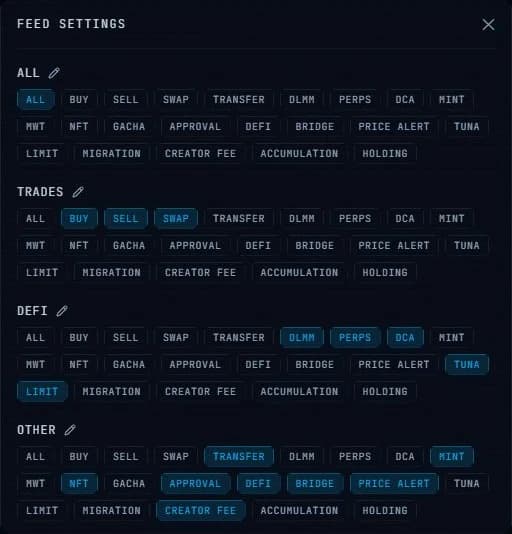
- Press a type to add it to that tab, or to remove it.
- ALL resets the tab to every type. Removing the last chosen type also brings ALL back.
Polymarket alerts have no type in this list, so they show in a tab set to ALL. See Polymarket traders.
The tracker tabs have no settings: they show their own alerts and nothing else.
Chains
When your account deals with more than one chain, a chain button appears next to the gear. It lists the chains you track, and you can choose one, several, or every chain at once. The choice applies to the feed and to your search results.
Search
Press the magnifier on the right of the tab bar. The search covers every notification of your account, the ones on screen and the older ones stored on the server. Type a token symbol or an address, and the number of results appears above the list. Press Escape, or the same button again, to leave the search.
History
Older alerts load as you scroll down. When nothing is left, the list ends with — end of history —.
While you are scrolled down, a banner appears at the top and counts the alerts that arrived since: press it to jump back to the newest one.
One alert in detail
Press a row to open it in the side panel. It repeats the alert with the details that do not fit in the row: the full token, the amounts, the wallet, the PnL, the market cap, the transaction link and the links of the token. Press outside the panel to close it.
Sound
The speaker at the bottom of the page opens the sound settings:
- Sound alerts switches the sound on or off, with Volume next to it.
- Nine sounds are available: Double Ping (the default), Soft Chime, Blip, Rise, Drop, Ding, Alert, Synth and Morse.
No push notifications
The Web Terminal only alerts you while its tab is open. Leave it open and the sound plays for each new alert. For alerts that reach you with the browser closed, use Telegram or Discord as well.
On a phone
The same feed works in a mobile browser. The tab bar sits along the bottom of the screen: swipe it sideways to reach the tracker tabs, and use the chain, settings and search buttons on its right. All the alerts of the account are there, in the same order.
Next steps
- Sign in if you have not opened the Web Terminal yet.
- The anatomy of an alert to read every field.
- Add wallets to fill the feed.
Last verified on October 28, 2026