
Set up your private alerts channel
Create your private Discord alerts channel in one click or choose your own, test delivery, pause it, and fix a channel that was deleted.
Your Discord alerts arrive in one private text channel. SpyBot creates it in one click on a server you own, hides it from @everyone, and adds only you and itself.
Two rules
The channel has to sit on a server you own, because SpyBot checks the owner before creating anything. And an account has one destination at a time: activating alerts in another channel replaces the previous one.
Open the alerts screen
Press 📬 Discord alerts in your menu. Typing /alerts on its own answers with the three values it accepts. With no channel yet, the screen says No alerts channel yet and offers 🔒 Create my private channel and Choose an existing channel.
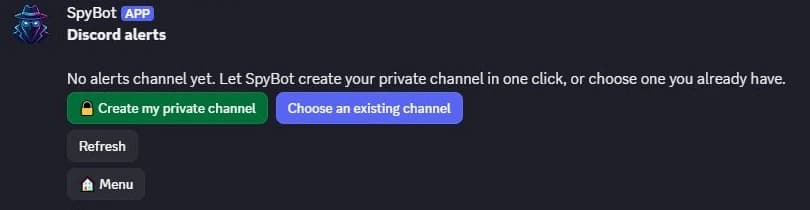
Create the channel
Press 🔒 Create my private channel. SpyBot makes #spybot-alerts: @everyone cannot view it, you can, and SpyBot can view it, post in it and embed links there. It posts a short introduction so the channel explains itself.

If SpyBot lacks Manage Channels on that server, the screen explains it and offers 🔑 Allow SpyBot: press it, confirm, then Refresh. You can also pick a channel you made yourself, below.
Test the delivery
Press Test delivery, then Confirm. SpyBot answers Test message sent. and posts this in the channel:
SpyBot — private delivery test. No transaction or payment was made.
The screen then shows the destination, with Change destination, Test delivery and Pause delivery.
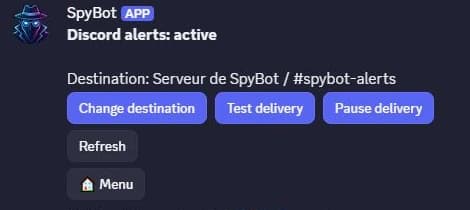
New wallets start alerting in that channel within a few seconds. Alerts from every tracker you enable, such as the Multi-Wallet Tracker or price alerts, use the same channel.
Who sees #spybot-alerts
- YouCan see it
- SpyBotCan see it
- @everyoneCannot see it
- Other members and rolesCannot see it
Server administrators keep access to every channel of the server, as Discord always allows.
Choose a channel you already made
Press Choose an existing channel and pick a text channel. SpyBot accepts it only if all of these are true:
- it is a private text channel on a server you own;
@everyonecannot view it, and no other member or role has an explicit view grant except you;- only you and SpyBot are added, and SpyBot can view the channel, send messages and embed links there.
Otherwise the screen answers that the channel is not private and asks for another one, or offers to create one for you. To prepare a channel by hand: next to Text Channels, press +, turn on Private Channel, then add SpyBot as a member.
Pause, resume and check
| Where | What you get |
|---|---|
| 📬 Discord alerts | The state, the destination, Change destination, Test delivery, Pause delivery or Resume |
/alerts action:status | The same state as a message, with the delivery policies that apply |
/alerts action:enable | Activates alerts in the channel where you send it, and replaces the previous destination |
/alerts action:pause | Stops delivery, and keeps your tracked wallets |
| The Web Terminal, Settings, Discord delivery | The state of the destination, Active, Paused or Blocked, and a Pause delivery button |
/alerts action:enable has to be sent inside the destination channel itself: a command run elsewhere cannot activate a channel it cannot see. Resuming is done from Discord, either with Resume or with /alerts action:enable in the channel.
Pausing stops future alerts. An alert already queued may still arrive, and an alert that is still waiting after 10 minutes expires without being sent. SpyBot keeps the delivery records for 7 days, so an expired alert can still be explained.
If the channel is deleted
SpyBot checks the channel before each delivery. When the channel was deleted, or when SpyBot can no longer view it or post in it, the destination becomes blocked and nothing more is sent. The alert is not retried on another channel.
To put alerts back on:
- Create a channel again with 🔒 Create my private channel, or restore the private permissions of the old one:
@everyonedenied, you and SpyBot allowed, plus Send Messages and Embed Links for SpyBot. - Press Test delivery to confirm, or send
/alerts action:enableinside the channel.
Who can read the channel
The alerts channel is private, not secret. Server administrators keep access through their own rights, and so does anyone you grant view access to. Use a server whose administrators you trust, ideally a server you created for yourself.
Next steps
- Permissions for linked accounts to allow changes from Discord.
- Slash commands, including every
/alertsoption. - Alerts you may not receive when a channel looks active but stays silent.
Last verified on October 24, 2026
Discord account or linked Telegram
Create a SpyBot account on Discord or link the Telegram account you already use, sign in to the Web Terminal, and check the link status.
Permissions for linked accounts
The three permission profiles a Telegram owner grants to a linked Discord account, what each one allows, and where to change them.